
Webflow Editor vs Designer Mode (Which Is Better For Designers?)

Webflow Editor vs Designer Mode explained for 2026. Compare features, workflows, SEO, pricing, and team roles to decide which tool fits designers best.

Webflow Editor vs Designer Mode (Which Is Better For Designers?)

Table of contents:

See more

If you are building or scaling a Webflow site in 2026, one of your first strategic decisions is how your team should work in Webflow Editor vs Designer Mode. Webflow has grown to power about 0.8% of all websites and 1.2% of CMS‑powered sites, which means more agencies, SaaS teams, and marketers are standardizing their internal processes around these two modes.

The Webflow Designer is where designers and developers control layout, interactions, CMS structure, and custom code, while the Webflow Editor focuses on safe, visual content editing for marketers and clients. This guide breaks down features, pricing, SEO, performance, and workflows so you can decide exactly who on your team should live in each tool.

Key Takeaways

  1. Designer builds layouts; Editor updates content safely.
  2. Pricing depends on roles, not separate plans.
  3. Real-time collaboration eliminates team bottlenecks today.
  4. Both tools share identical SEO and performance foundations.
  5. Smart workflows combine Designer structure with Editor speed

Take your website design to the next level with our stunning collection of Webflow templates. making them more manageable

What are Webflow Editor and Designer?

Webflow Designer: visual development and layout control

The Webflow Designer is the full visual development environment where you structure pages, build layouts, configure CMS Collections, and implement animations and custom code. It outputs clean, semantic HTML, CSS, and JavaScript while giving you granular control over typography, spacing, breakpoints, and interactions.

Inside the Designer, you work with panels for Navigator, Pages, Assets, Styles, interactions, and component properties, turning it into a no‑code frontend dev environment that still follows modern web standards. In 2025–2026, Webflow has also expanded Designer capabilities with advanced CSS functions, AI‑assisted optimization, and collaboration features like direct team invites and audit logs for larger teams.

Webflow Editor (Edit mode): visual content editing

The Webflow Editor (often called Edit mode) is a simplified interface designed for non‑technical teammates to update live content without touching layout or structure. Editors can click directly on text, images, links, and CMS items on the live page, update them inline, and publish changes without entering the Designer.

The Editor also exposes SEO fields such as meta titles, descriptions, alt text, and Open Graph content, making it a good place for marketers to keep on‑page SEO aligned with campaigns. Because the Editor cannot alter classes, component structure, or grid layouts, it significantly reduces the risk of breaking the design while still speeding up day‑to‑day content work.

Webflow Editor vs Designer: In-Depth Comparison for 2026

Feature comparison: what each tool can do

Use this section to clarify capabilities when stakeholders ask “who should use what” in Webflow Editor vs Designer.

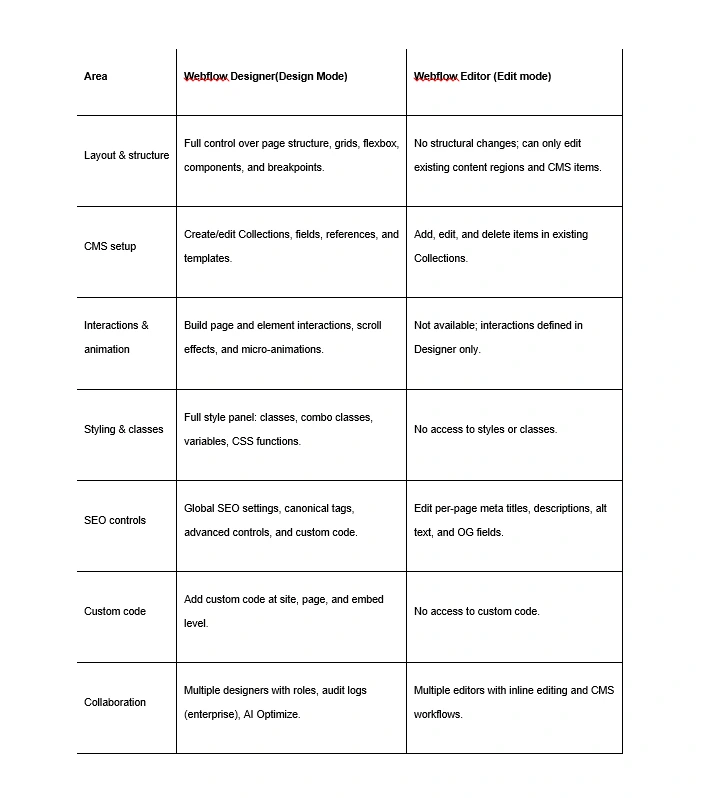
Core capabilities table
Core capabilities table

In practice, the Designer is your build environment, while Editor is your update environment, especially once a project moves into ongoing marketing and content operations.

Pricing breakdown: how access works

Webflow does not charge separately for “Editor vs Designer,” but access is controlled through Workspace roles and site plans, which affects how many people can use each mode.

  • Designer access
    • Included for Workspace members with Designer‑level roles on a project (e.g., Admin, Designer).​
    • Typically tied to paid Workspace plans for agencies, in‑house teams, or freelancers managing multiple projects.​
  • Editor access
    • Content Editors are added per site and can edit via the Webflow Editor interface on the live URL.
    • Many Site plans include at least 3 content editors, which is usually enough for marketing and content teams on small to mid‑size sites.​

From a Webflow pricing comparison perspective, heavy Designer use tends to push you toward richer Workspace plans, while content‑heavy, low‑design teams can maximize value by concentrating access in the Editor.​

Performance Metrics: speed and UX

Both Webflow Editor and Designer operate on the same underlying hosting and rendering, so page performance for visitors is identical regardless of which mode you used to create or edit a page. The main differences are in workflow performance for your team:

  • Designer performance
    • Heavier UI with multiple panels and visual code logic; best used on modern desktop devices with solid CPU and RAM.
    • Ideal for building complex interactions and responsive layouts, but overkill for quick copy changes.​
  • Editor performance
    • Lightweight, browser‑based overlay on the live site, making inline updates faster and more intuitive.
    • Features like auto‑save, draft labels, and preview across devices reduce friction and prevent content loss.

Webflow usage data from 2025 shows teams moving to Webflow to improve agility, with reported decreases in bounce rate of about 27.9% and increases in pageviews around 12.7% after migrating from other CMSs, partly due to better performance and content workflows.​

Usability & UX: which is easier?

The perceived usability of Webflow Editor vs Designer depends on your skill set.

  • Designer UX
    • Advanced interface intended for users comfortable with box‑model layout, responsive design concepts, and component‑based systems.
    • Moderate to steep learning curve, but gives professional designers near‑developer‑level control without hand coding.
  • Editor UX
    • Minimalist, inline editing experience; ideal for marketers, copywriters, and clients who just need to change content.
    • Reduces cognitive load by hiding technical options, making it safer to give access to non‑design stakeholders.

For UX in 2026, a best practice is to restrict Designer access to trained Webflow builders and push everyone else toward Editor to minimize risk and support clean governance.

Target Audience Fit: Who Should Use What?

Think about Webflow tools in the context of your team roles.

  • Best fit for Webflow Designer
    • Web designers and developers are building custom layouts, components, and interactions.
    • Agencies and studios managing multiple client projects, design systems, and advanced CMS structures.
    • Technical marketers or growth teams doing experimentation with layouts, A/B tests, and advanced SEO setups.
  • Best fit for Webflow Editor
    • Content marketers, SEO specialists, and copywriters manage blogs, landing pages, and product content.
    • eCommerce managers updating product descriptions, collections, and promotions without touching layout.
    • Clients who want control over content but should not be allowed to change classes, grids, or custom code.

Blending both tools lets agencies keep a high standard of design quality while empowering clients or internal teams to move fast on content.

Pros and Cons

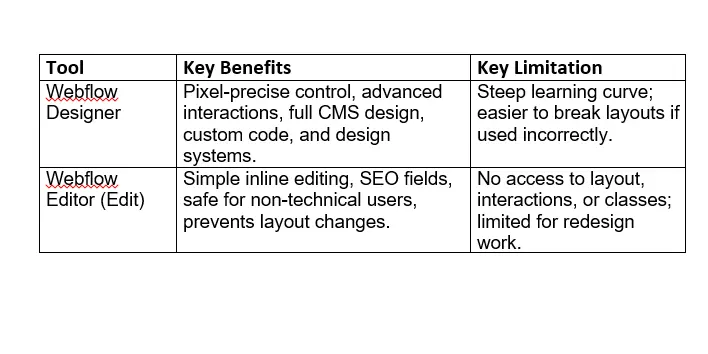
Pros and cons table
Pros and cons table

For most Webflow Designer vs Editor pros and cons discussions, the trade‑off is control vs safety; Designer offers maximum flexibility, while Editor optimizes for guardrails and speed.

SEO considerations: how each mode affects SEO

Webflow has invested heavily in SEO features, and both tools contribute differently to optimization.

  • SEO in Designer
    • Configure site‑wide settings like canonical tags, noindex rules for CMS pages, structured layouts, and heading hierarchies.​
    • Add performance‑oriented custom code, schema, and advanced redirects that impact crawlability and rankings.
  • SEO in Editor
    • Update page‑level SEO fields (titles, descriptions, alt text, OG images) alongside copy changes.
    • Use preview modes to check how content appears across devices and ensure headings and content remain aligned with search intent.​

Because Webflow’s code output is semantic and standards‑compliant, many brands see measurable improvements in engagement metrics and organic performance after migrating and then keeping SEO fields fresh through the Editor.

Security & reliability

Security is handled at the platform and hosting level, so both Webflow Editor vs Designer share the same underlying protections.​

  • Platform security
    • Webflow provides managed hosting with SSL certificates, DDoS protection, and infrastructure security as part of its core offering.​
    • Enterprise features like audit logs and role‑based permissions help larger teams track Designer‑level changes.​
  • Workflow reliability
    • Using Editor for content significantly reduces the likelihood that a non‑technical user will inadvertently break layouts or scripts.
    • Designer allows powerful changes but should be limited to trusted team members with clear publishing workflows.

A good governance model uses granular roles, Designer access only for qualified builders, and Editor for everyone else who touches content.

Customer support & community

Support and community resources apply across Webflow tools, but different roles use different types of help.​

  • Support & resources
    • Designer‑heavy teams rely on Webflow University, feature docs, and community forums for more advanced builds.​
    • Editors benefit from concise training docs or Loom walkthroughs focused on content workflows rather than design logic.​
  • Community ecosystem
    • The growing Webflow ecosystem (templates, apps, and agencies) helps teams scale both design and content operations, with thousands of templates and components that start in Designer and then get updated via Editor.
    • Webflow’s continuing market share growth and strong community presence signal long‑term stability for investing in these workflows.

In 2026, collaborative features and simultaneous editing in Webflow allow entire teams to work on the same project across Designer and Editor, further improving throughput.

Common pitfalls

Common mistakes with Editor and Designer

Avoid these frequent issues when planning how your team uses Webflow Editor vs Designer.

  • Giving Designer access to everyone
    • Letting non‑technical users into the Designer increases the risk of layout breaks, interaction bugs, or inconsistent styles.
  • Underusing the Editor for SEO and content
    • Some teams keep all updates in Designer, slowing work and missing out on the Editor’s streamlined SEO and content workflows.
  • No documented workflow
    • Without clear rules around who edits where, teams accidentally overwrite changes, misalign brand voice, or publish unreviewed content.

Take your website design to the next level with our stunning collection of Webflow templates. making them more manageable

Frequently Asked Questions

What’s the difference between Webflow Editor and Designer?

The Webflow Designer is a full visual development environment for building layouts, CMS structures, interactions, and custom code, giving designers complete control over how a site looks and behaves. The Webflow Editor is a simplified interface on the live site that lets non‑technical users edit text, images, and CMS content—and adjust basic SEO fields—without changing layout or styles.

Which Webflow tool is best for beginners?

For non‑technical beginners like marketers or content writers, the Editor is usually best because it focuses on safe, inline content editing with minimal controls. Beginners who want to learn visual web design and are comfortable with layout concepts can start in the Designer, though they should expect a steeper learning curve.

How does Webflow Editor compare to Designer for responsive design?

Responsive design is handled in the Designer, where you can adjust breakpoints, flexbox and grid settings, and typography across devices. The Editor cannot change responsive layouts but lets you preview how content updates will look on desktop, tablet, and mobile before publishing.

Can both Editor and Designer affect SEO?

Yes; the Designer handles technical SEO scaffolding such as consistent heading structures, canonical tags, and performance‑oriented custom code, while the Editor is ideal for ongoing updates to titles, descriptions, alt text, and on‑page copy. Using both together helps teams maintain strong SEO while moving quickly on content changes.

Do I need separate plans for Webflow Editor vs Designer?

You do not buy separate “Editor vs Designer” plans; instead, access depends on your Workspace roles and site plan, which control how many team members can work in Designer and how many content editors you can add per site. Most commercial site plans include multiple Editor seats, while richer Workspace plans unlock broader Designer access for agencies and in‑house teams.

Conclusion 

In 2026, the smartest Webflow teams stop thinking of Webflow Editor vs Designer as a competition and start treating them as complementary tools in a single workflow. Designers and developers build systems, components, and interactions in the Designer, while marketers and clients keep content and SEO fresh through the Editor.

If your team is planning a new build or migration, map every role to the right Webflow tool: give your builders focused time in the Designer and empower your content team in the Editor so you ship faster without sacrificing quality. 

Next steps: set up a test project, invite your core team with appropriate roles, and experiment with a small campaign or blog series to dial in your ideal Webflow workflow for 2026

Table of contents:

See more

If you are building or scaling a Webflow site in 2026, one of your first strategic decisions is how your team should work in Webflow Editor vs Designer Mode. Webflow has grown to power about 0.8% of all websites and 1.2% of CMS‑powered sites, which means more agencies, SaaS teams, and marketers are standardizing their internal processes around these two modes.

The Webflow Designer is where designers and developers control layout, interactions, CMS structure, and custom code, while the Webflow Editor focuses on safe, visual content editing for marketers and clients. This guide breaks down features, pricing, SEO, performance, and workflows so you can decide exactly who on your team should live in each tool.

Key Takeaways

  1. Designer builds layouts; Editor updates content safely.
  2. Pricing depends on roles, not separate plans.
  3. Real-time collaboration eliminates team bottlenecks today.
  4. Both tools share identical SEO and performance foundations.
  5. Smart workflows combine Designer structure with Editor speed

Take your website design to the next level with our stunning collection of Webflow templates. making them more manageable

What are Webflow Editor and Designer?

Webflow Designer: visual development and layout control

The Webflow Designer is the full visual development environment where you structure pages, build layouts, configure CMS Collections, and implement animations and custom code. It outputs clean, semantic HTML, CSS, and JavaScript while giving you granular control over typography, spacing, breakpoints, and interactions.

Inside the Designer, you work with panels for Navigator, Pages, Assets, Styles, interactions, and component properties, turning it into a no‑code frontend dev environment that still follows modern web standards. In 2025–2026, Webflow has also expanded Designer capabilities with advanced CSS functions, AI‑assisted optimization, and collaboration features like direct team invites and audit logs for larger teams.

Webflow Editor (Edit mode): visual content editing

The Webflow Editor (often called Edit mode) is a simplified interface designed for non‑technical teammates to update live content without touching layout or structure. Editors can click directly on text, images, links, and CMS items on the live page, update them inline, and publish changes without entering the Designer.

The Editor also exposes SEO fields such as meta titles, descriptions, alt text, and Open Graph content, making it a good place for marketers to keep on‑page SEO aligned with campaigns. Because the Editor cannot alter classes, component structure, or grid layouts, it significantly reduces the risk of breaking the design while still speeding up day‑to‑day content work.

Webflow Editor vs Designer: In-Depth Comparison for 2026

Feature comparison: what each tool can do

Use this section to clarify capabilities when stakeholders ask “who should use what” in Webflow Editor vs Designer.

Core capabilities table

Core capabilities table

In practice, the Designer is your build environment, while Editor is your update environment, especially once a project moves into ongoing marketing and content operations.

Pricing breakdown: how access works

Webflow does not charge separately for “Editor vs Designer,” but access is controlled through Workspace roles and site plans, which affects how many people can use each mode.

  • Designer access
    • Included for Workspace members with Designer‑level roles on a project (e.g., Admin, Designer).​
    • Typically tied to paid Workspace plans for agencies, in‑house teams, or freelancers managing multiple projects.​
  • Editor access
    • Content Editors are added per site and can edit via the Webflow Editor interface on the live URL.
    • Many Site plans include at least 3 content editors, which is usually enough for marketing and content teams on small to mid‑size sites.​

From a Webflow pricing comparison perspective, heavy Designer use tends to push you toward richer Workspace plans, while content‑heavy, low‑design teams can maximize value by concentrating access in the Editor.​

Performance Metrics: speed and UX

Both Webflow Editor and Designer operate on the same underlying hosting and rendering, so page performance for visitors is identical regardless of which mode you used to create or edit a page. The main differences are in workflow performance for your team:

  • Designer performance
    • Heavier UI with multiple panels and visual code logic; best used on modern desktop devices with solid CPU and RAM.
    • Ideal for building complex interactions and responsive layouts, but overkill for quick copy changes.​
  • Editor performance
    • Lightweight, browser‑based overlay on the live site, making inline updates faster and more intuitive.
    • Features like auto‑save, draft labels, and preview across devices reduce friction and prevent content loss.

Webflow usage data from 2025 shows teams moving to Webflow to improve agility, with reported decreases in bounce rate of about 27.9% and increases in pageviews around 12.7% after migrating from other CMSs, partly due to better performance and content workflows.​

Usability & UX: which is easier?

The perceived usability of Webflow Editor vs Designer depends on your skill set.

  • Designer UX
    • Advanced interface intended for users comfortable with box‑model layout, responsive design concepts, and component‑based systems.
    • Moderate to steep learning curve, but gives professional designers near‑developer‑level control without hand coding.
  • Editor UX
    • Minimalist, inline editing experience; ideal for marketers, copywriters, and clients who just need to change content.
    • Reduces cognitive load by hiding technical options, making it safer to give access to non‑design stakeholders.

For UX in 2026, a best practice is to restrict Designer access to trained Webflow builders and push everyone else toward Editor to minimize risk and support clean governance.

Target Audience Fit: Who Should Use What?

Think about Webflow tools in the context of your team roles.

  • Best fit for Webflow Designer
    • Web designers and developers are building custom layouts, components, and interactions.
    • Agencies and studios managing multiple client projects, design systems, and advanced CMS structures.
    • Technical marketers or growth teams doing experimentation with layouts, A/B tests, and advanced SEO setups.
  • Best fit for Webflow Editor
    • Content marketers, SEO specialists, and copywriters manage blogs, landing pages, and product content.
    • eCommerce managers updating product descriptions, collections, and promotions without touching layout.
    • Clients who want control over content but should not be allowed to change classes, grids, or custom code.

Blending both tools lets agencies keep a high standard of design quality while empowering clients or internal teams to move fast on content.

Pros and Cons

Pros and cons table

Pros and cons table

For most Webflow Designer vs Editor pros and cons discussions, the trade‑off is control vs safety; Designer offers maximum flexibility, while Editor optimizes for guardrails and speed.

SEO considerations: how each mode affects SEO

Webflow has invested heavily in SEO features, and both tools contribute differently to optimization.

  • SEO in Designer
    • Configure site‑wide settings like canonical tags, noindex rules for CMS pages, structured layouts, and heading hierarchies.​
    • Add performance‑oriented custom code, schema, and advanced redirects that impact crawlability and rankings.
  • SEO in Editor
    • Update page‑level SEO fields (titles, descriptions, alt text, OG images) alongside copy changes.
    • Use preview modes to check how content appears across devices and ensure headings and content remain aligned with search intent.​

Because Webflow’s code output is semantic and standards‑compliant, many brands see measurable improvements in engagement metrics and organic performance after migrating and then keeping SEO fields fresh through the Editor.

Security & reliability

Security is handled at the platform and hosting level, so both Webflow Editor vs Designer share the same underlying protections.​

  • Platform security
    • Webflow provides managed hosting with SSL certificates, DDoS protection, and infrastructure security as part of its core offering.​
    • Enterprise features like audit logs and role‑based permissions help larger teams track Designer‑level changes.​
  • Workflow reliability
    • Using Editor for content significantly reduces the likelihood that a non‑technical user will inadvertently break layouts or scripts.
    • Designer allows powerful changes but should be limited to trusted team members with clear publishing workflows.

A good governance model uses granular roles, Designer access only for qualified builders, and Editor for everyone else who touches content.

Customer support & community

Support and community resources apply across Webflow tools, but different roles use different types of help.​

  • Support & resources
    • Designer‑heavy teams rely on Webflow University, feature docs, and community forums for more advanced builds.​
    • Editors benefit from concise training docs or Loom walkthroughs focused on content workflows rather than design logic.​
  • Community ecosystem
    • The growing Webflow ecosystem (templates, apps, and agencies) helps teams scale both design and content operations, with thousands of templates and components that start in Designer and then get updated via Editor.
    • Webflow’s continuing market share growth and strong community presence signal long‑term stability for investing in these workflows.

In 2026, collaborative features and simultaneous editing in Webflow allow entire teams to work on the same project across Designer and Editor, further improving throughput.

Common pitfalls

Common mistakes with Editor and Designer

Avoid these frequent issues when planning how your team uses Webflow Editor vs Designer.

  • Giving Designer access to everyone
    • Letting non‑technical users into the Designer increases the risk of layout breaks, interaction bugs, or inconsistent styles.
  • Underusing the Editor for SEO and content
    • Some teams keep all updates in Designer, slowing work and missing out on the Editor’s streamlined SEO and content workflows.
  • No documented workflow
    • Without clear rules around who edits where, teams accidentally overwrite changes, misalign brand voice, or publish unreviewed content.

Frequently Asked Questions

What’s the difference between Webflow Editor and Designer?

The Webflow Designer is a full visual development environment for building layouts, CMS structures, interactions, and custom code, giving designers complete control over how a site looks and behaves. The Webflow Editor is a simplified interface on the live site that lets non‑technical users edit text, images, and CMS content—and adjust basic SEO fields—without changing layout or styles.

Which Webflow tool is best for beginners?

For non‑technical beginners like marketers or content writers, the Editor is usually best because it focuses on safe, inline content editing with minimal controls. Beginners who want to learn visual web design and are comfortable with layout concepts can start in the Designer, though they should expect a steeper learning curve.

How does Webflow Editor compare to Designer for responsive design?

Responsive design is handled in the Designer, where you can adjust breakpoints, flexbox and grid settings, and typography across devices. The Editor cannot change responsive layouts but lets you preview how content updates will look on desktop, tablet, and mobile before publishing.

Can both Editor and Designer affect SEO?

Yes; the Designer handles technical SEO scaffolding such as consistent heading structures, canonical tags, and performance‑oriented custom code, while the Editor is ideal for ongoing updates to titles, descriptions, alt text, and on‑page copy. Using both together helps teams maintain strong SEO while moving quickly on content changes.

Do I need separate plans for Webflow Editor vs Designer?

You do not buy separate “Editor vs Designer” plans; instead, access depends on your Workspace roles and site plan, which control how many team members can work in Designer and how many content editors you can add per site. Most commercial site plans include multiple Editor seats, while richer Workspace plans unlock broader Designer access for agencies and in‑house teams.

Conclusion 

In 2026, the smartest Webflow teams stop thinking of Webflow Editor vs Designer as a competition and start treating them as complementary tools in a single workflow. Designers and developers build systems, components, and interactions in the Designer, while marketers and clients keep content and SEO fresh through the Editor.

If your team is planning a new build or migration, map every role to the right Webflow tool: give your builders focused time in the Designer and empower your content team in the Editor so you ship faster without sacrificing quality. 

Next steps: set up a test project, invite your core team with appropriate roles, and experiment with a small campaign or blog series to dial in your ideal Webflow workflow for 2026

Table of contents:

See more

If you are building or scaling a Webflow site in 2026, one of your first strategic decisions is how your team should work in Webflow Editor vs Designer Mode. Webflow has grown to power about 0.8% of all websites and 1.2% of CMS‑powered sites, which means more agencies, SaaS teams, and marketers are standardizing their internal processes around these two modes.

The Webflow Designer is where designers and developers control layout, interactions, CMS structure, and custom code, while the Webflow Editor focuses on safe, visual content editing for marketers and clients. This guide breaks down features, pricing, SEO, performance, and workflows so you can decide exactly who on your team should live in each tool.

Key Takeaways

  1. Designer builds layouts; Editor updates content safely.
  2. Pricing depends on roles, not separate plans.
  3. Real-time collaboration eliminates team bottlenecks today.
  4. Both tools share identical SEO and performance foundations.
  5. Smart workflows combine Designer structure with Editor speed

Latest Post

Webflow Editor vs Designer Mode (Which Is Better For Designers?)
Webflow

Webflow Editor vs Designer Mode (Which Is Better For Designers?)

Webflow Editor vs Designer Mode explained for 2026. Compare features, workflows, SEO, pricing, and team roles to decide which tool fits designers best.

January 22, 2026
Webflow Page Speed Optimization: Complete Performance Guide Today
Webflow

Webflow Page Speed Optimization: Complete Performance Guide Today

If you're using Webflow to build high-performance sites for clients or your own brand, mastering Webflow Page Speed Optimization is the single most valuable skill you can acquire.

December 11, 2025
5 Best Blog Webflow Templates in 2025
Webflow

5 Best Blog Webflow Templates in 2025

Discover the top 5 Webflow blog templates of 2025—fast, SEO-ready, responsive designs that boost engagement and help you build a stunning content platform.

November 30, 2025